


I first searched how to extract a signature from a PDF when I needed to reuse a signed approval page without asking for the signature again. The document itself was fine, but the signature was locked inside the PDF. Copying the entire page wasn’t helpful. I only needed the signature, clean and reusable. That experience pushed me to understand how signatures are stored inside PDFs and what can actually be extracted. In this guide, I explain practical ways to extract signatures from PDFs using UPDF, including handwritten, image-based, digital, and scanned signatures.
Why A User Might Need To Extract A Signature From A PDF?
There are more situations where signature extraction becomes necessary than I expected. I’ve needed it when updating documents, preparing revised contracts, and reorganizing signed files. Sometimes the original signer is unavailable, and the signature must be reused on an approved version of the same document. Other times, I only need the signature image for record-keeping or internal templates.
Extracting a signature also helps when converting signed PDFs into new formats or when signatures need to be added consistently across multiple documents. In all these cases, knowing how to extract signature from PDF correctly saves time and avoids unnecessary re-signing.
What Are Signatures in PDF and Why Are They Implemented?
Before extracting anything, I found it important to understand how signatures exist inside a PDF.
Different Types of Signatures
Handwritten signatures
These are usually drawn with a mouse, stylus, or touchscreen and saved as an image layer.
Digital signatures
These are cryptographic signatures tied to certificates. They validate document integrity, but are not designed to be reused visually.
Electronic signatures
These include typed names or drawn signatures added directly to the PDF without encryption.
Few Hurdles In Extracting Signatures
The biggest challenge is preserving quality. Poor extraction results in blurry or jagged images. Another issue appears when trying how to extract signature from scanned pdf, where the signature is part of a flat image instead of a selectable layer. Digital signatures add another layer of complexity because they are not meant to be copied directly.
How To Extract A Signature From PDF (Handwritten Or Image-Based)
It is one of the most common issues that I’ve dealt with:
To Extract A Handwritten Signature
If the signature is added as a comment or image layer, UPDF makes this simple.
Desktop Steps (Copy And Paste Method)
- Launch UPDF and open your respective PDF in it.
- Get to the Comment mode.

Alt: switch-to-comment-mode
- Click directly on the handwritten signature.

Alt: right-click-on-signature
- Do a right click on the signature and choose the Copy option.
- Paste the signature into another PDF or document.
Once copied, I can resize or reposition the signature freely.
I often drag and drop the pasted signature into other PDFs to reuse it consistently.
Mobile Steps (Copy And Paste)
- Open the PDF in UPDF mobile.

Alt: open-updf
- Select the signature by tapping on it.
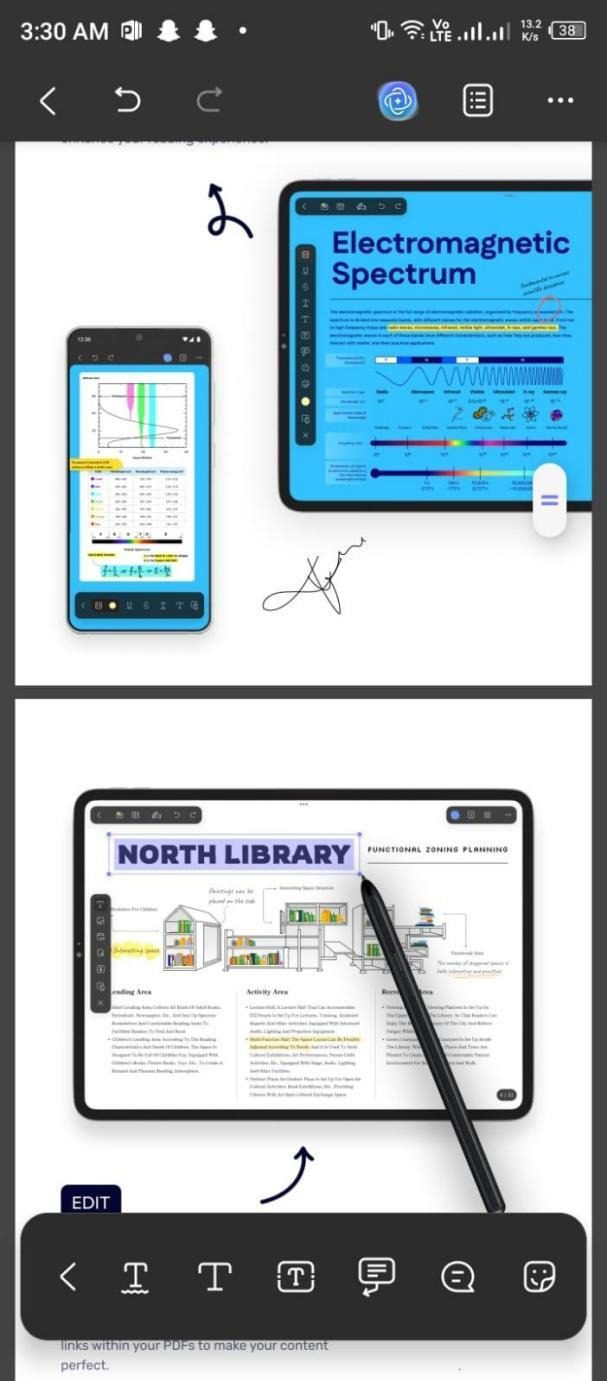
Alt: tap-the-signature
- Choose Copy from the menu.

Alt: choose-copy-from-menu
- Paste it into another PDF file.
This works well when I need to reuse a signature on the go.
To Extract An Image-Based Signature
Way 1. Save The Image Signature Directly
This works only if the image layer is selectable and not flattened.
- Open the PDF in UPDF.
- Click the image signature.

Alt: save-signature
- Right-click and choose Save Image.
- Save it to your device.
Way 2. Upload A Saved Signature Image
If I already have the image saved:
- Open the respective PDF in UPDF
- Go to the Tools option and choose Edit mode.
- Click the image icon there.
- Upload the saved signature image.
- Place it where needed.
Tip: Create And Save Your Own Signature In UPDF
When I don’t want to extract anything, I create a reusable signature instead.
Steps:
- Open UPDF.
- Go to the signing tool.
- Create a new handwritten or typed signature.
- Save it to UPDF Cloud.
This lets me reuse the signature across devices.
Mobile Steps For Image Signatures
- Select the image signature and save it.
- Or scan the signature from the Gallery or camera.
- Insert it using Edit > Image.
Part 4. How To Extract Digital Signatures From PDF
Digital signatures are different. They can’t be copied like images.
Desktop Method
- Open the signed PDF.
- Zoom into the digital signature area.
- Take a screenshot of the signature.
- Crop the image to isolate the signature.
- If needed, remove the background using image tools.
- Insert the image back into another PDF using Edit > Image.
This is the safest visual workaround when dealing with how to extract digital signature from pdf.
Tip: Create Your Own Digital Signature
Instead of extracting, I sometimes create a new digital signature in UPDF and save it for reuse.
Steps:
- Open UPDF.
- Go to Sign.
- Create a digital signature.
- Save it for future use.
Mobile Steps
- Take a screenshot of the digital signature.
- Crop it in Photos.
- Insert it via Edit > Image.
How To Extract A Signature From A Scanned PDF
Scanned PDFs are image-only, so extraction requires OCR.
Desktop Steps
- Open the scanned PDF in UPDF.
- Run OCR to make content selectable.

- Select the signature area.

- Copy or save it as an image.
- Reuse it following the Part 3 steps.
I avoid OCR for digital signatures since logos and shapes may distort.
Mobile Steps
- Open UPDF.

Alt: open-updf
- Run OCR in UPDF mobile.

Alt: run-ocr

Alt: ocr-finished
- Tap Extract to save the signature image.

Alt: extract-signature
- Insert or store the image.
Final Verdict
Learning how to extract a signature from PDF changed how I handle signed documents. Whether it’s handwritten, digital, or scanned, each type requires a different approach. UPDF gives me the flexibility to extract, reuse, or recreate signatures without damaging quality or structure. Instead of re-signing documents or recreating files from scratch, I now extract signatures confidently and reuse them when appropriate.