

Video editing needs focus, precision, and enough screen space to manage different tasks. A single screen can work, but it often feels crowded when the timeline, preview window, tools, and media files are all open at once.
Dual monitors make the workflow easier by giving editors more room to work. One screen can be used for the timeline and tools, while the other can show a larger preview. This helps reduce clutter, improve focus, and make editing feel more organized.
Why Dual Monitors Matter in Video Editing
Dual monitors matter because video editing often requires several panels to stay open at the same time, such as:
- Timeline
- Preview window
- Media files
- Effects panel
- Audio tools
- Color controls
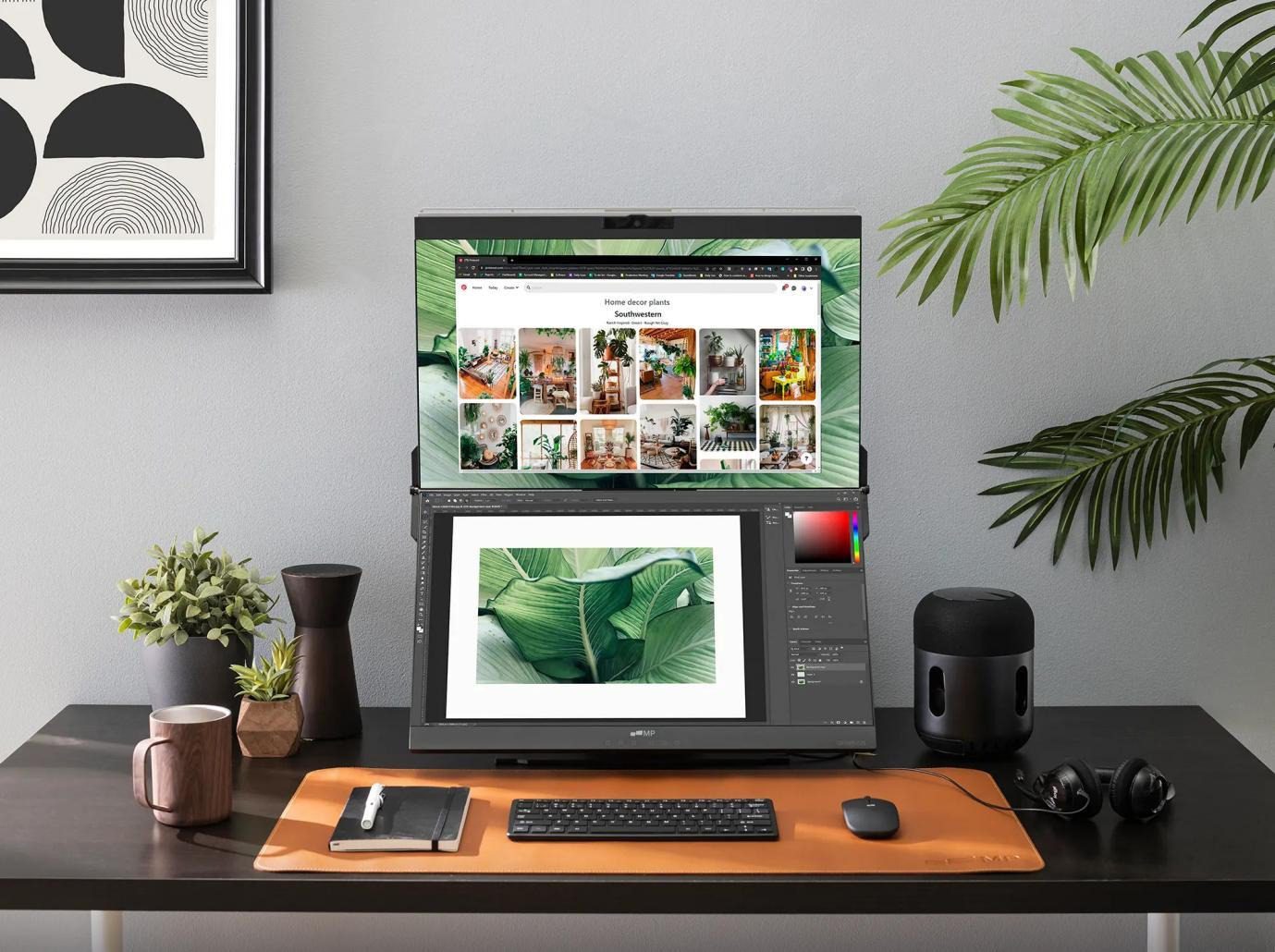
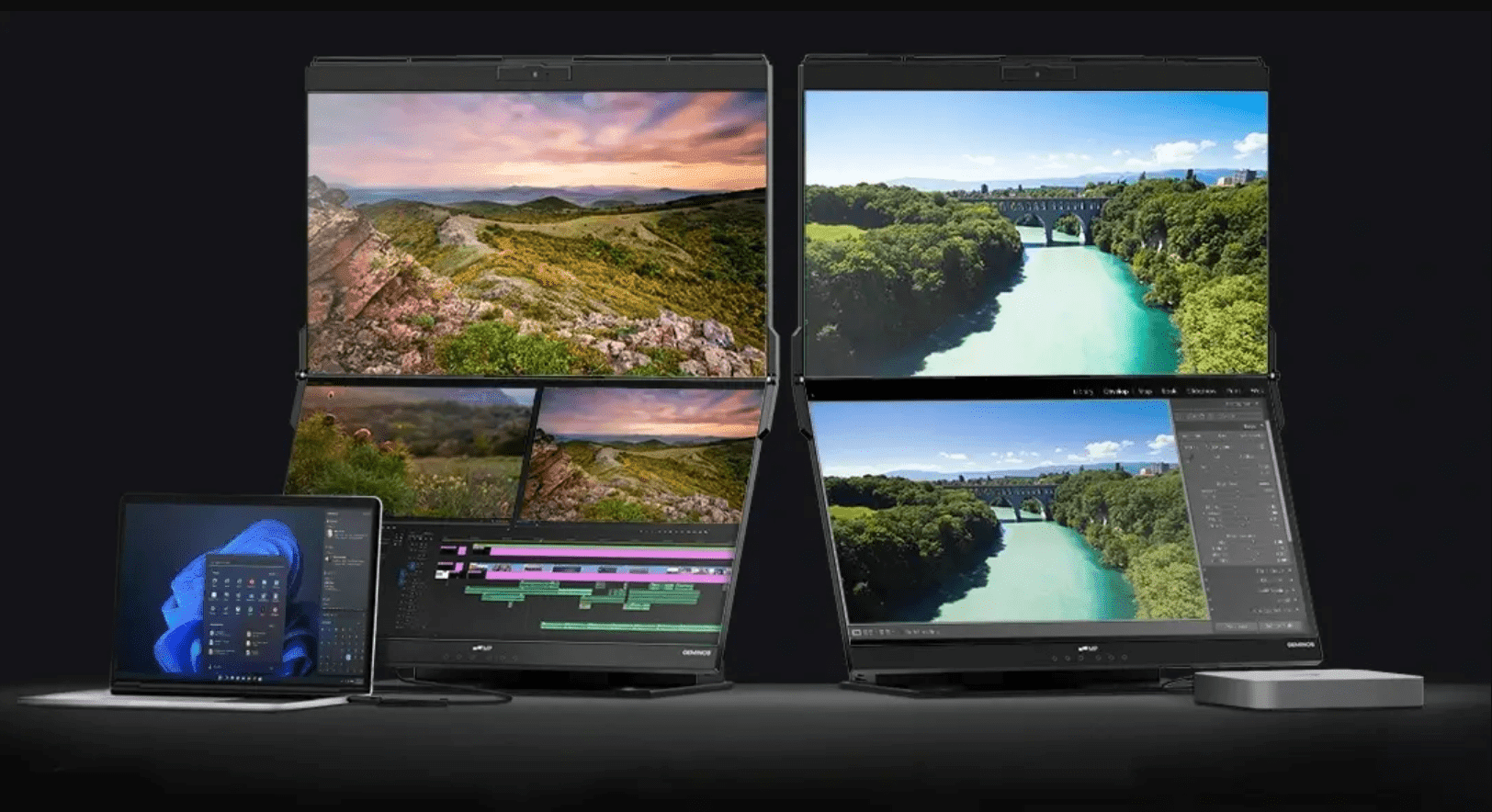
A setup like the Geminos dual monitor can help editors get more screen space without spreading their workspace too far across the desk. Its stacked layout is especially useful for video editors who want to keep the timeline, preview window, and tools within the same viewing area while saving desk space.
The Problem with Single-Screen Editing
Editing on one screen can feel limiting because you often have to:
- Switch between panels
- Resize windows
- Work with a smaller preview
- Manage a cramped timeline
- Look harder for small visual details
These interruptions can slow down the process and break your focus.
The Core Advantage with Dual Monitors: Separation of Tasks
The biggest benefit of dual monitors is task separation. Instead of crowding everything onto one screen, you can divide your workspace clearly:
- Primary screen: Timeline, tools, and media files
- Secondary screen: Larger preview, playback, and visual checks
This setup reduces clutter, keeps your workspace easier to manage, and helps you make editing decisions faster.
Ideal Dual Monitor Setup for Editors
A good dual monitor setup works best when each screen has a clear purpose.
Timeline on Primary Screen
Use the primary screen for your main editing workspace, including:
- Timeline
- Media bin
- Editing tools
- Effects panel
- Audio controls
This gives you more room to trim clips, adjust cuts, and manage tracks without feeling cramped.
Preview on Secondary Screen
Use the secondary screen for playback and visual review, including:
- Full preview
- Framing checks
- Motion review
- Color checks
- Spotting small errors
This keeps your footage easy to review while your editing tools stay ready on the main screen.
Workflow Transformation with Dual Monitors
Dual monitors can make video editing faster and easier to manage. With more screen space, you can keep your main tools visible and work with fewer interruptions.
Faster Editing Decisions
A dual monitor setup helps you view the timeline, preview, and tools at the same time. This supports faster and more efficient content production because you do not have to keep switching between windows.
Reduced Timeline Errors
When more tracks are visible, it becomes easier to catch issues such as:
- Overlapping clips
- Misaligned cuts
- Missing audio
- Timeline gaps
- Unwanted layers
Better visibility helps you edit with more accuracy.
Improved Multitasking
Dual monitors also make it easier to check other items while editing, such as:
- Client notes
- Script references
- File folders
- Audio meters
- Export settings
This keeps your workflow organized and helps you stay focused longer.
Conclusion
Dual monitors can make video editing more comfortable, organized, and efficient. They give editors more room for timelines, previews, tools, and references without crowding one screen.
With the right setup, you can spend less time switching windows and more time making better editing decisions.